Pre-Requisites:
Is the production site live and working? Visit site to confirm. Look at the system information while you are there and write down, or screenshot the name of the production database. Sometimes the names are confusing, and you need to copy and point the new environment to the correct database: 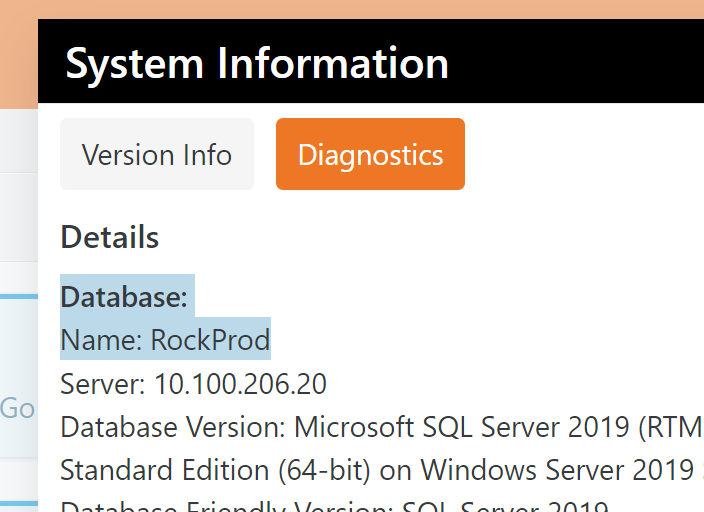
Is the dev site live and working? Visit site to confirm, and note the name of the dev database. (If dev isn't working, you can proceed, but knowing its not working beforehand will help with troubleshooting later.)
Does the client need anything from production before we start? Let them get it out before replacing dev.
---------------------------------------------------------------------------------------------------------------
Replace Old Dev Environment:
1.) Gather credentials for Azure and RDP (for dev and prod if they are separate), and SQL Server if possible. If the dev environment does not yet exist, the process will be slightly different.
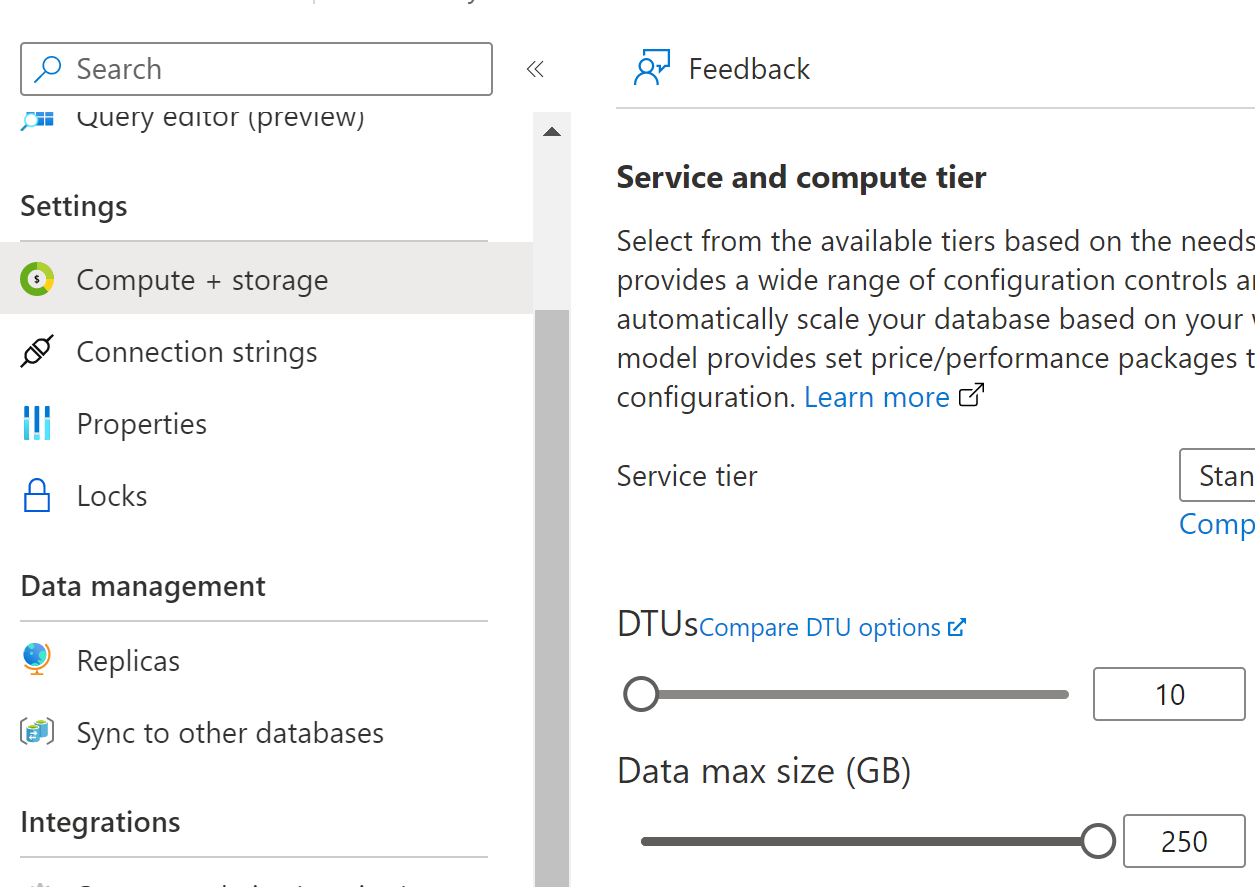
2.) Log into Azure and copy the production database. Name it something with the word 'dev'. Dates are good, too. Copy the database name to your clipboard for use in step 6. Open the old dev database in Azure, and go to Settings > Compute+ Storage. Turn the Dtu's down to 10. Open the new database and turn the Dtu's up to 50.
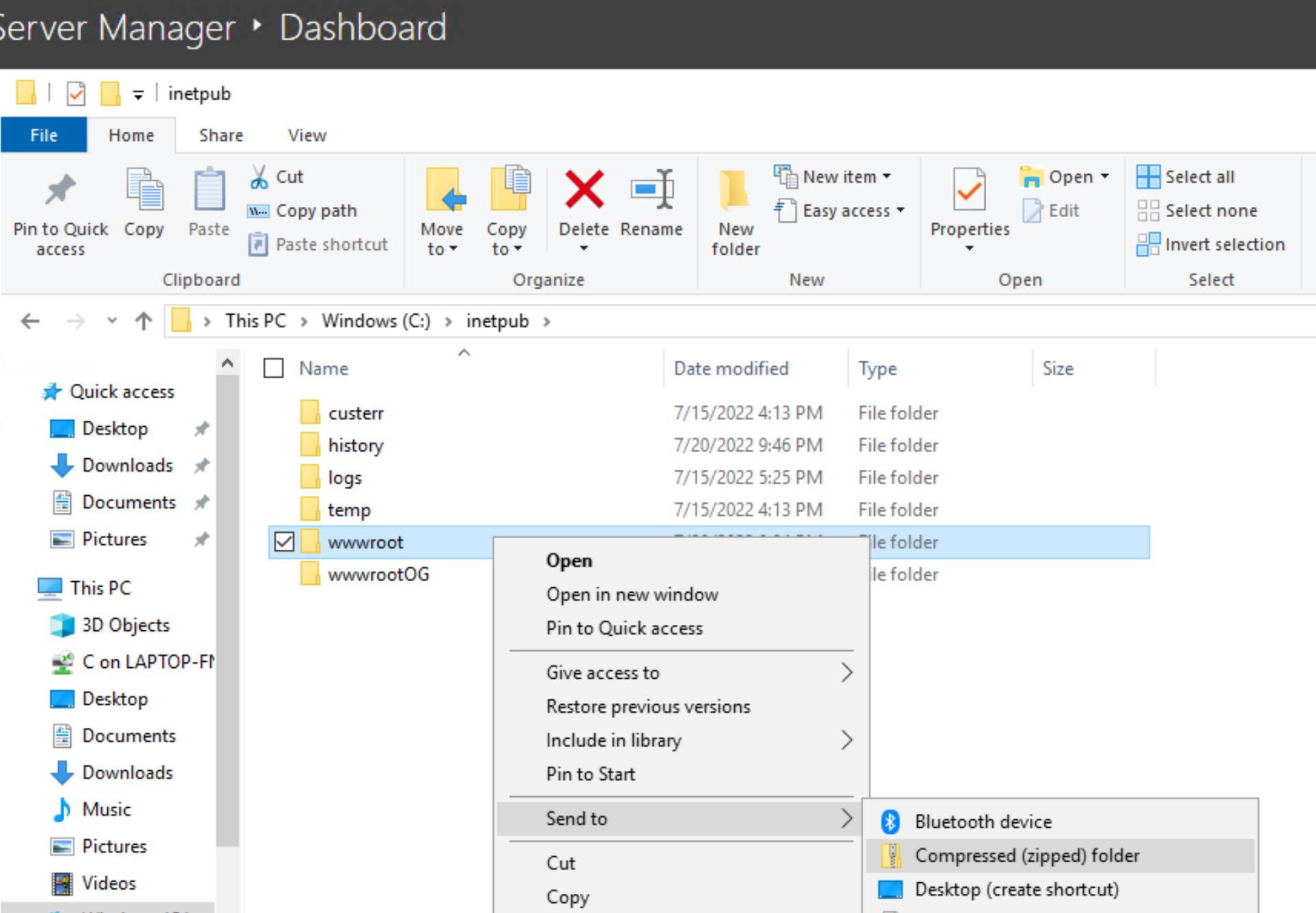
3a.) (separate servers) RDP to production server. Open file tree, go to Windows (C:) > Inetpub. If dev environment is to be on a different server, right click on 'wwwroot' (prod) and send to zipped folder.
3b.) (same server) RDP to shared server. Open file tree, go to Windows (C:) > Inetpub. Right click the existing wwwroot (dev) folder and send it to the compressed (zipped) folder. Delete the un-zipped version. Then, copy and paste the production 'wwwroot' right there in inetpub and name it after the old dev wwwroot (like 'wwwroot-dev'):
4a.) (separate servers) Open a browser and log into your your 9Embers Microsoft account. Save the zipped wwwroot folder in your OneDrive documents. Log out, close all the windows and close the RDP connection.
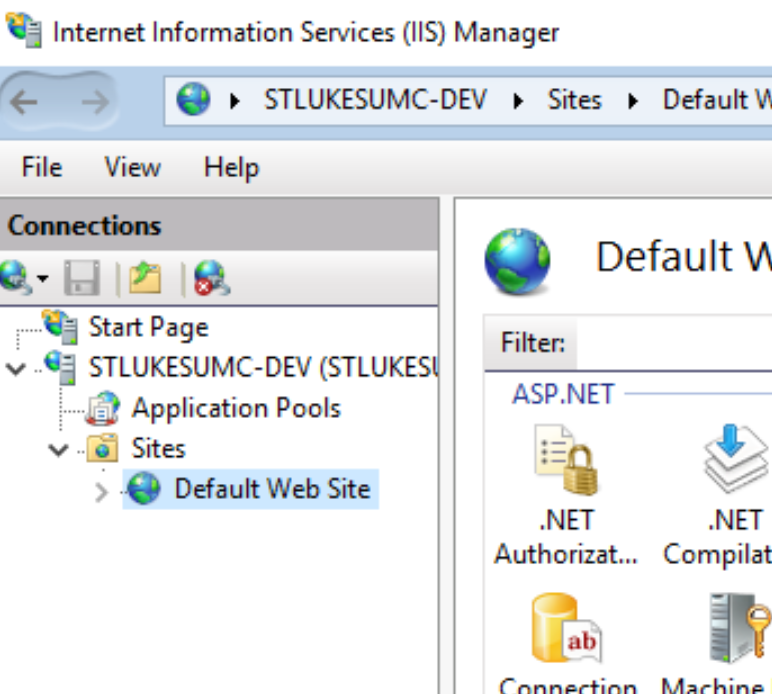
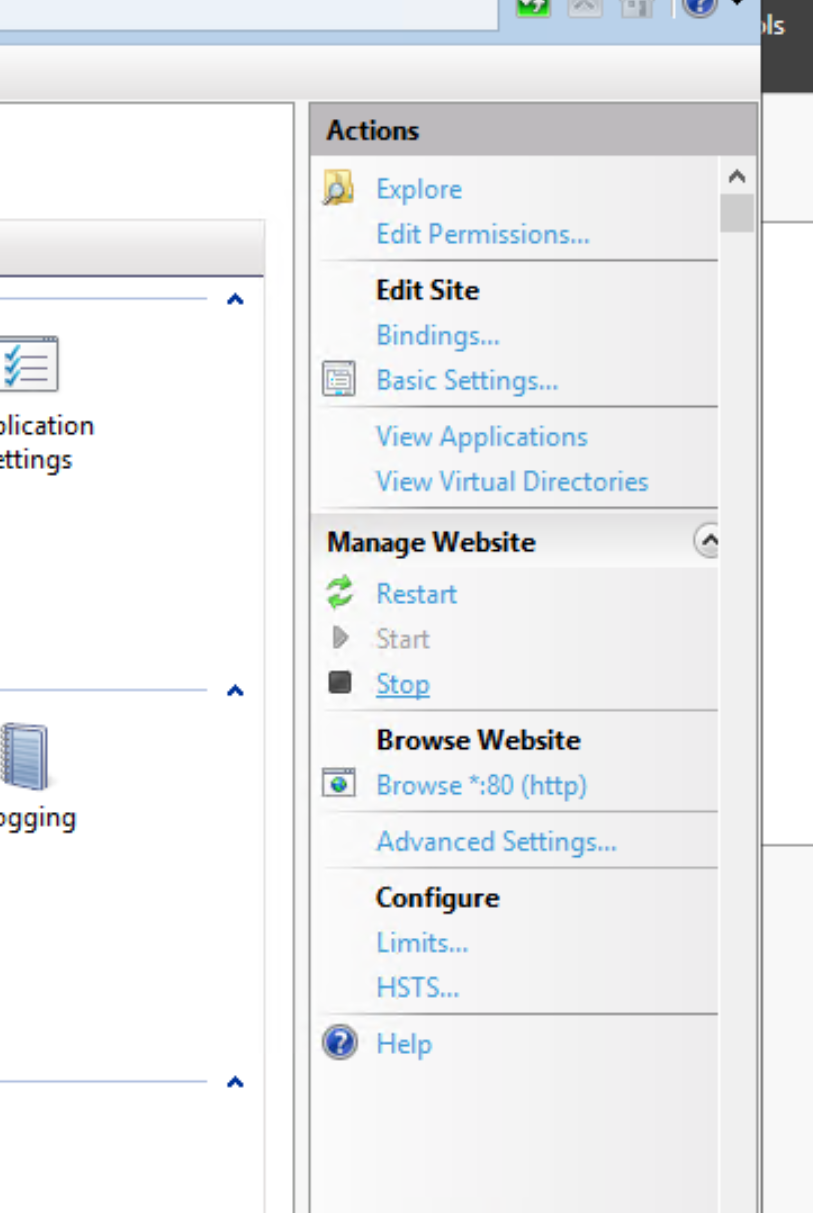
5.) RDP into dev server ( if necessary) and open IIS. In the left panel, open Sites > Default Web Site (or Dev website). In right panel, under 'Manage Websites', click 'Stop'.
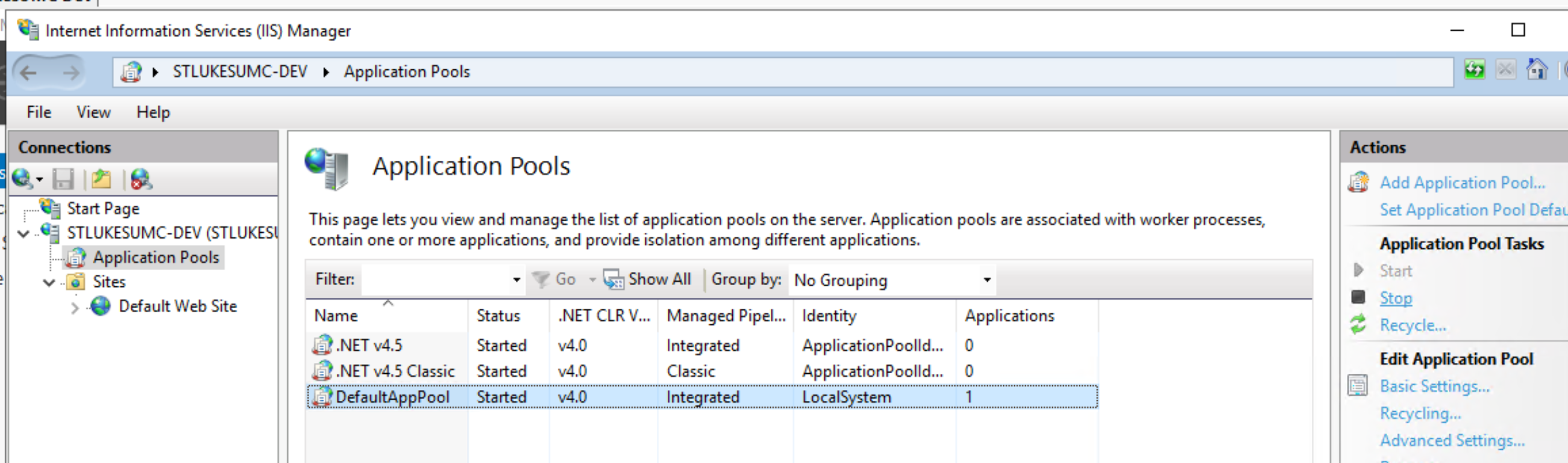
Open 'Application Pool' in left panel. Select Default, and Click 'Stop'. (for shared server, only stop the dev site. Stopping these WILL take the site down. Do not stop the production site.)
6a.) (separate servers) In the dev server and navigate to Inetpub and zip the existing wwwroot folder, then delete the unzipped version. Open browser and log in to your 9Embers Microsoft account.
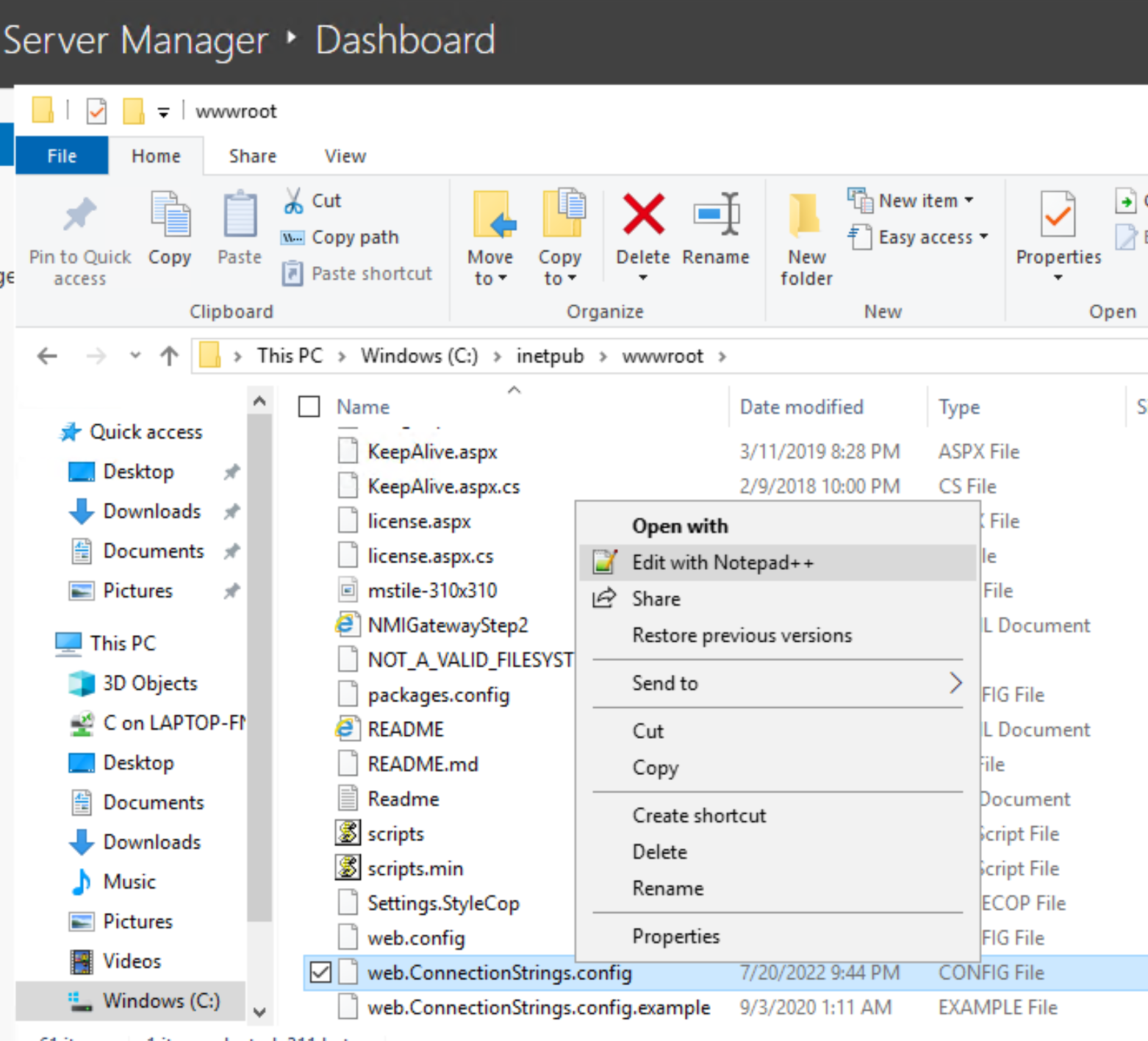
Download the zipped 'wwwroot' folder you just saved in OneDrive, then extract files to Inetpub. Open the newly created folder and right click on 'ConnectionStrings.config' file at the bottom. Open in Notepad++:
6b.) (shared server) Go back to the Inetpub in the file tree. Open the newly created wwwroot-dev folder and right click on 'ConnectionStrings.config' file at the bottom. Open in Notepad++:
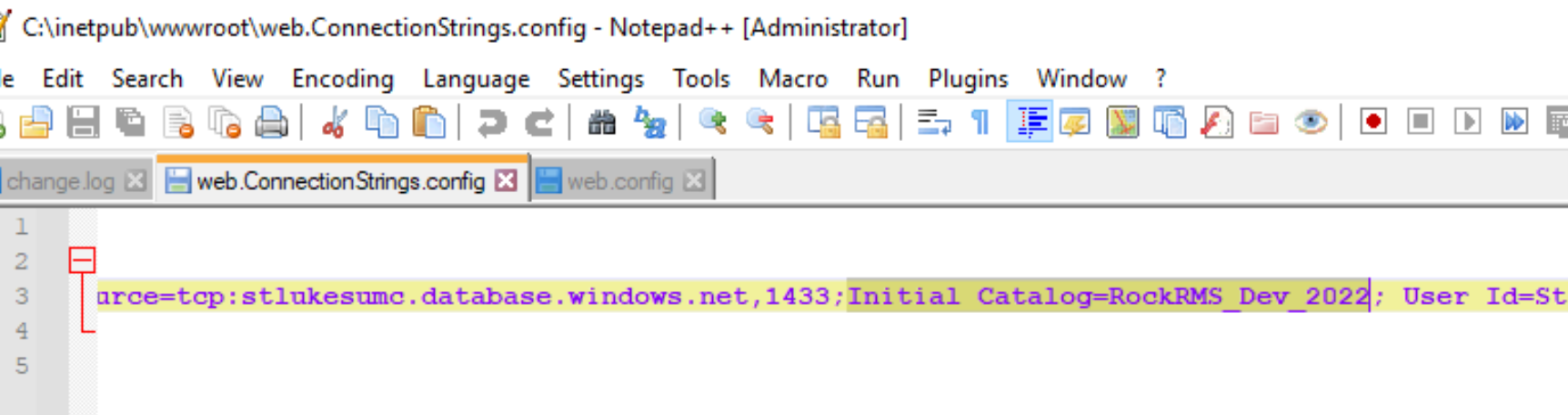
7.) Edit the Connection String to point to the new database you created in step 2 by changing the value of 'Initial Catalog' highlighted in the following screenshot.
In this case, you would change 'RockRMS_Dev*_*2022' to be the name of the database you copied in step 2. (You should not need to change the username and password in the other parts of the connection string.) Save the connection string file.
8.) Go back to IIS, navigate to the dev site, and open Advanced Settings under Browse Website. Make sure that the Physical Path of the site points to the correct wwwroot (dev) folder. 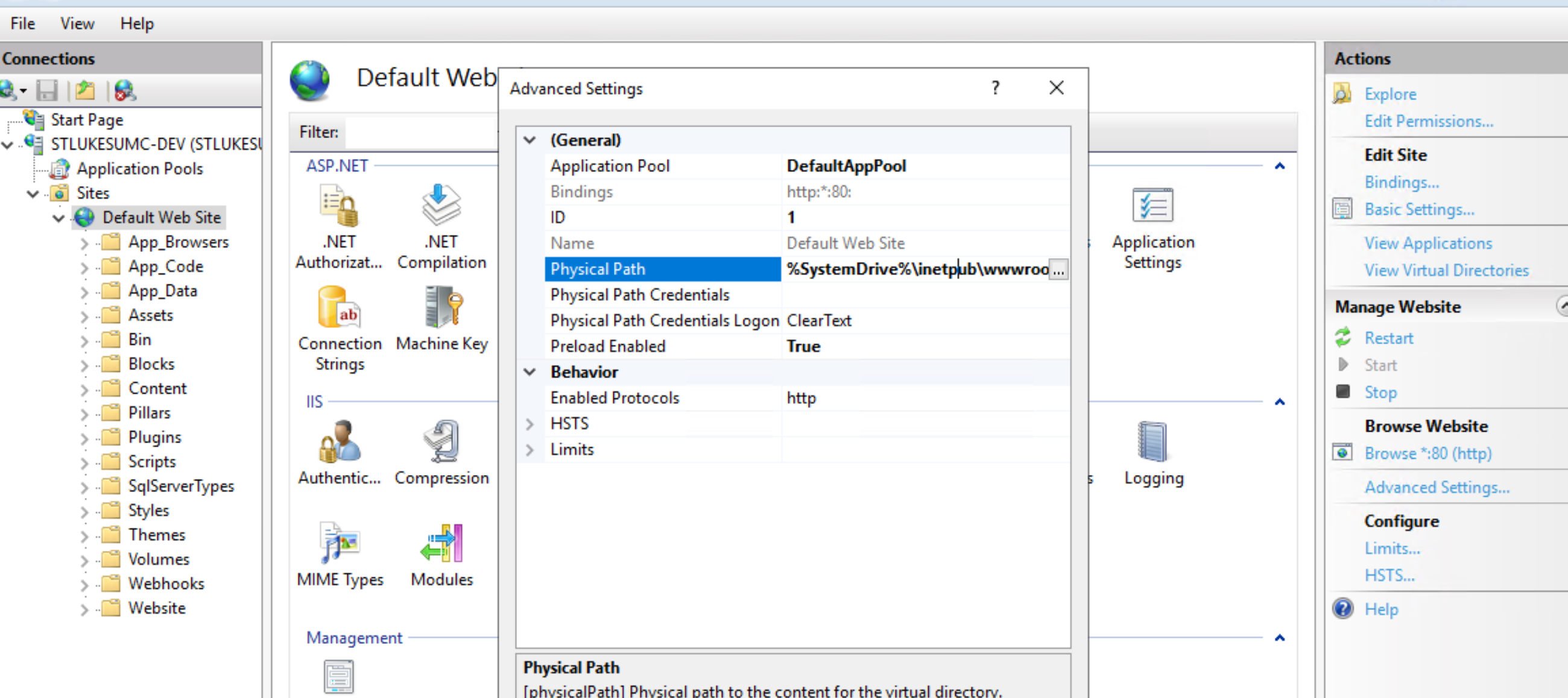
9.) Re-start the application pool, wait a minute, then re-start the site and visit the site to make sure it is up. If the client has set up the DNS for their dev site, you can visit the dev URL. If not, you can check it going to IIS, and clicking 'Browse *:80' or 'Browse *443' under 'Browse Website'. You can also just type the ip address of the server (find it in Azure) into the url field of a browser.
10.) Test Production and make sure everything is good there, too.
11.) Go back to Azure and turn the DTUs down to 10.
---------------------------------------------------------------------------------------------------------------
NEXT STEPS for dev:
