+1 vote
in Rock by (13.1k points)
edited

Originally posted by Unknown

Your church might want to way to capture registration form responses so that they can be added to a connection request. In order to do that, you'll need to have a couple of items in place.

Registration:

  • Create your registration template with the information you want to capture.

Connection Request

  • Create your connection request opportunity that will capture the registration responses.

  • Add an HTML attribute in your connection opportunity where the registration details will be added. See below for attribute field type settings.
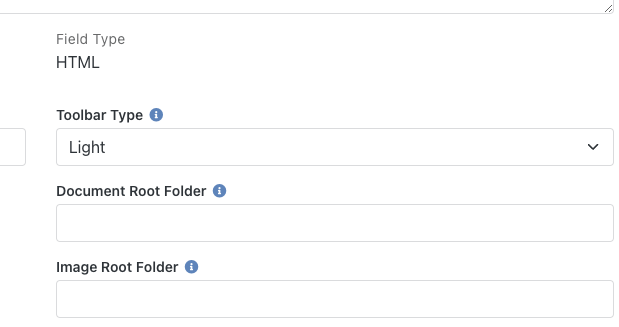
    enter image description here

Workflow

  • Create a workflow that will capture the registration form responses. (Here is an example - https://demo.9embers.com/admin/general/workflows?workflowTypeId=131&ExpandedIds=C144)

  • This workflow can be added at the registration instance or the template level.

  • To get the registration details of the registrant, add a Lava Run action with the following Lava:

    • NOTE: You'll need to select 'Rock Entity' from the Enabled Lava Commands.

      {% assign person = Workflow | Attribute:'VBSVolunteer','Object' %}
      {%- sql -%}
          SELECT TOP 1 R.[Id] 
          FROM [RegistrationRegistrant] R
          INNER JOIN [PersonAlias] PA ON PA.[Id] = R.[PersonAliasId] 
          WHERE R.[RegistrationId] = {{ Workflow | Attribute:'RegistrationId' }}
          AND PA.[PersonId] = {{ person.Id }}
      {%- endsql -%}
      {%- for item in results -%}
          {%- registrationregistrant where:'Id == {{item.Id}}' -%}
              {%- for form in registrationregistrant.Registration.RegistrationInstance.RegistrationTemplate.Forms -%}
                  {%- for field in form.Fields -%}
                      {%- if field.IsGridField and field.AttributeId -%}
                          {%- if field.FieldSource == 'RegistrantAttribute' -%}
                              {%- for attribute in registrationregistrant.AttributeValues -%}
                                  {%- if attribute.AttributeId == field.AttributeId -%}
                                      {%- assign attributeValue = attribute.ValueFormatted -%}
                                      {%- if attributeValue != '' -%}
                                          {{ attribute.AttributeName }}: <strong>{{ attributeValue }}</strong><br/>
                                      {%- endif -%}
                                  {%- endif -%}
                              {%- endfor -%}
                          {%- endif -%}
                          {%- if field.FieldSource == 'PersonAttribute' -%}
                              {%- for attribute in person.AttributeValues -%}
                                  {%- if attribute.AttributeId == field.AttributeId -%}
                                      {%- assign attributeValue = attribute.ValueFormatted -%}
                                      {%- if attributeValue != '' -%}
                                          {{ attribute.AttributeName }}: <strong>{{ attributeValue }}</strong><br/>
                                      {%- endif -%}
                                  {%- endif -%}
                              {%- endfor -%}
                          {%- endif -%}
                      {%- endif -%}
                  {%- endfor -%}
              {%- endfor -%}
          {%- endregistrationregistrant -%}
      {%- endfor -%}


  • Within your workflow you'll need to add an action that creates your connection request for the necessary connection opportunity.

  • Add the registration form to your connection request by using an Entity Attribute Set action and adding the attribute key from the connection opportunity.

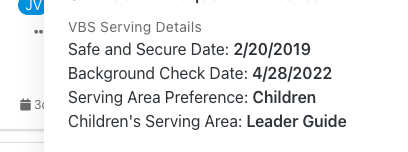
RESULT:

When this workflow is launched from a registration, it will capture all of the registration responses for the registrant and adds it to the connection request. enter image description here
1 Answer

+1 vote
by MarissaEubanks (4.0k points)
edited

Registration:

  • Create your registration template with the information you want to capture.

Connection Request

  • Create your connection request opportunity that will capture the registration responses.

  • Add an HTML attribute in your connection opportunity where the registration details will be added. See below for attribute field type settings.

    enter image description here

Workflow

  • Create a workflow that will capture the registration form responses. (Here is an example - https://demo.9embers.com/admin/general/workflows?workflowTypeId=131&ExpandedIds=C144)

  • This workflow can be added at the registration instance or the template level.

  • To get the registration details of the registrant, add a Lava Run action with the following Lava:

    • NOTE: You'll need to select 'Rock Entity' from the Enabled Lava Commands.

      {% assign person = Workflow | Attribute:'VBSVolunteer','Object' %}
      {%- sql -%}
          SELECT TOP 1 R.[Id] 
          FROM [RegistrationRegistrant] R
          INNER JOIN [PersonAlias] PA ON PA.[Id] = R.[PersonAliasId] 
          WHERE R.[RegistrationId] = {{ Workflow | Attribute:'RegistrationId' }}
          AND PA.[PersonId] = {{ person.Id }}
      {%- endsql -%}
      {%- for item in results -%}
          {%- registrationregistrant where:'Id == {{item.Id}}' -%}
              {%- for form in registrationregistrant.Registration.RegistrationInstance.RegistrationTemplate.Forms -%}
                  {%- for field in form.Fields -%}
                      {%- if field.IsGridField and field.AttributeId -%}
                          {%- if field.FieldSource == 'RegistrantAttribute' -%}
                              {%- for attribute in registrationregistrant.AttributeValues -%}
                                  {%- if attribute.AttributeId == field.AttributeId -%}
                                      {%- assign attributeValue = attribute.ValueFormatted -%}
                                      {%- if attributeValue != '' -%}
                                          {{ attribute.AttributeName }}: <strong>{{ attributeValue }}</strong><br/>
                                      {%- endif -%}
                                  {%- endif -%}
                              {%- endfor -%}
                          {%- endif -%}
                          {%- if field.FieldSource == 'PersonAttribute' -%}
                              {%- for attribute in person.AttributeValues -%}
                                  {%- if attribute.AttributeId == field.AttributeId -%}
                                      {%- assign attributeValue = attribute.ValueFormatted -%}
                                      {%- if attributeValue != '' -%}
                                          {{ attribute.AttributeName }}: <strong>{{ attributeValue }}</strong><br/>
                                      {%- endif -%}
                                  {%- endif -%}
                              {%- endfor -%}
                          {%- endif -%}
                      {%- endif -%}
                  {%- endfor -%}
              {%- endfor -%}
          {%- endregistrationregistrant -%}
      {%- endfor -%}


  • Within your workflow you'll need to add an action that creates your connection request for the necessary connection opportunity.

  • Add the registration form to your connection request by using an Entity Attribute Set action and adding the attribute key from the connection opportunity.

RESULT:

When this workflow is launched from a registration, it will capture all of the registration responses for the registrant and adds it to the connection request. enter image description here

by MarissaEubanks (4.0k points)
@CourtneyHarris Can you accept the answer on this one to clear it from 'Unanswered'?
Welcome! Here you can ask questions and receive answers (hopefully) from other members of our team.
...